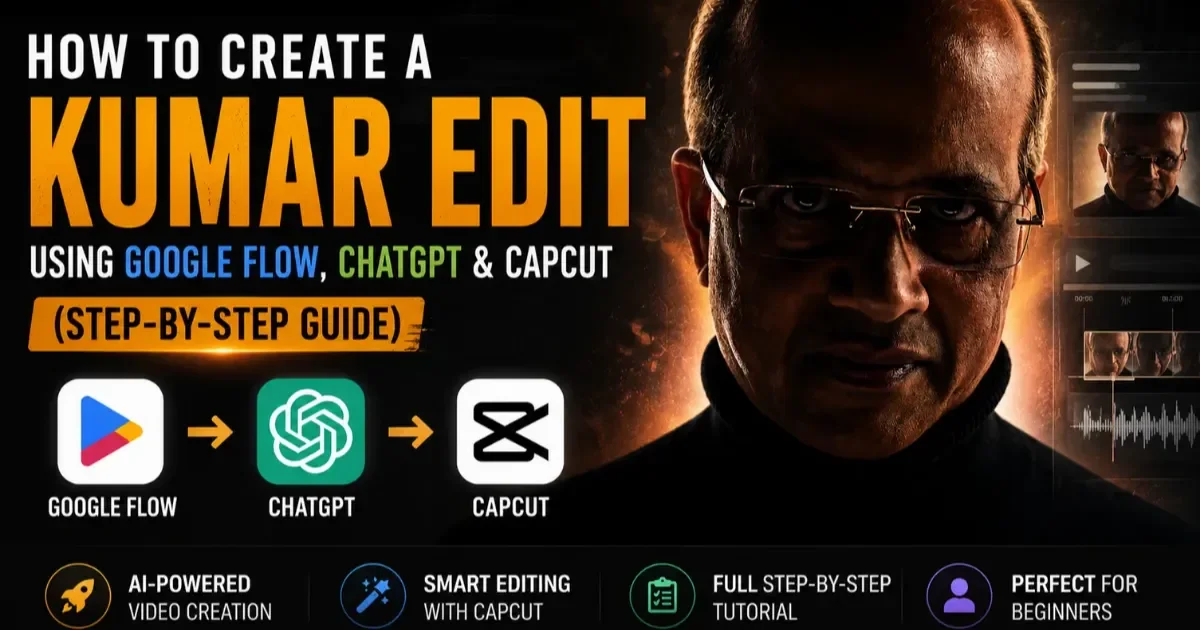
Want to make those dark, cinematic “Kumar-style” edits where you look like a luxury entrepreneur in a high-end office? This tutorial shows the full workflow using Google Flow + ChatGPT + CapCut.
What You Need
A smartphone to record video
Google Flow for background replacement and animation
ChatGPT for cinematic image prompts
CapCut for final editing
Step 1: Find Your Cinematic Background Image
Search Google Images for a luxury dark office scene, for example:
cinematic dark executive office US map wall
Or download this image:
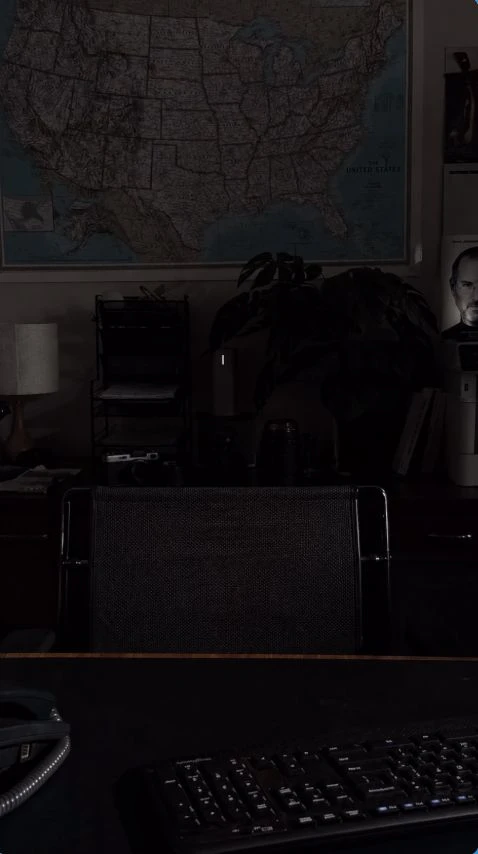
Choose a high-quality image with:
Dark moody lighting
Executive desk and leather chair
Warm lamp glow
Luxury office atmosphere
Download the image. This will become your AI-generated background.
Step 2: Record Your Talking Clips
Record yourself speaking directly to the camera.
Important recording tips
Keep your upper body in frame
Face the main light source
Record one sentence per clip
Keep each clip under 10 seconds
Don’t worry about the real background — AI will remove it
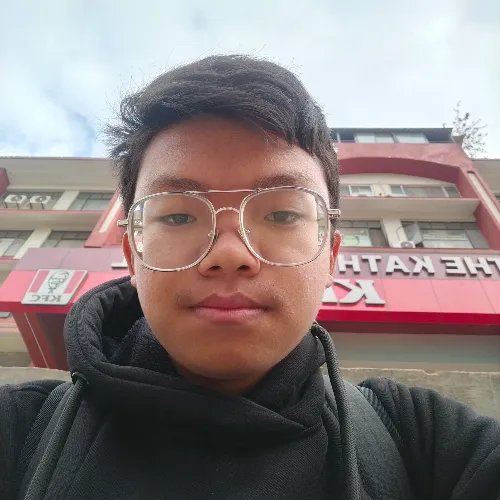
After recording, take a screenshot from one clip where your face and posture look clear.
Step 3: Replace the Background in Google Flow
Go to flow.google.com.
Upload:
Your video clip
The cinematic office background image
Paste this prompt:
Google Flow Prompt
I am providing you with TWO inputs: 1. My real video clip — a person speaking directly to camera 2. A reference image — a cinematic dark executive office with a US map on the wall SUBJECT: Extract and preserve the exact real person from the video. Keep their real face, skin tone, facial hair, expressions, lip movements, and speech intact across every frame. Do NOT generate a new person. BACKGROUND: Remove the video background entirely. Replace it with the exact environment from the reference image — the US map, dark office atmosphere, desk lamp, leather chair, dark wood. FRAMING: Zoom out to match the reference image — show full upper body, both arms, generous environment visible around the subject. HANDS: Hands fully visible, fingers pressed together in a natural steepled/joined gesture. LIGHTING: Dark cinematic relight — strong directional key light on face from above, deep shadows on body sides, warm lamp glow on left shoulder only. Reduce overall exposure significantly. COLOR GRADE: Deep blacks, warm skin tones, teal/dark blue shadows, slightly desaturated environment, high contrast. OUTPUT: The real person speaking naturally, in the exact reference environment, consistent and flicker-free across every frame.
Generate the video and download it.
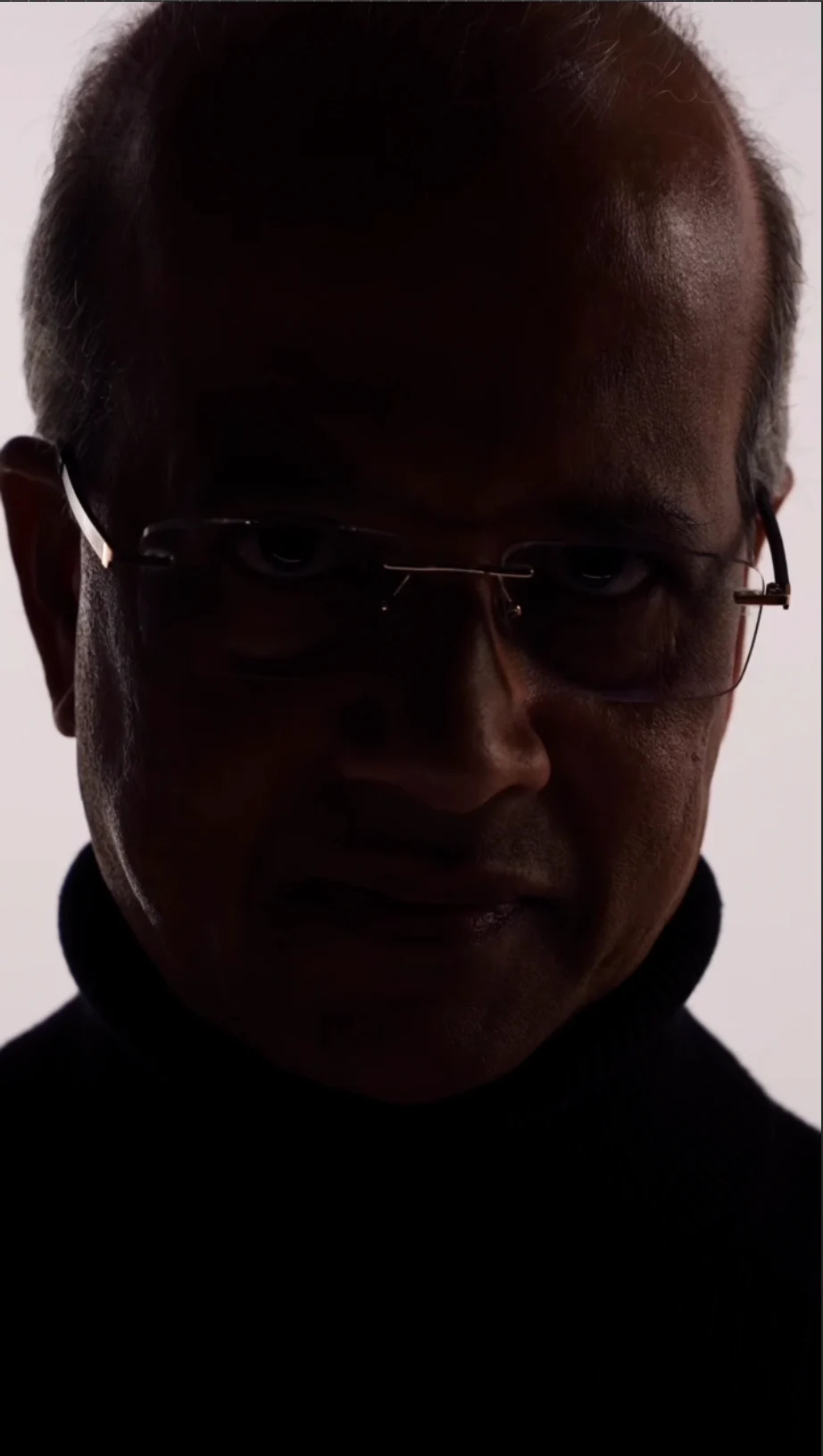
For Eg: This image of you yours and above backgound image!
Step 4: Create Cinematic Pose Photos with ChatGPT
Find a cinematic pose reference from Instagram, Pinterest, or another video.
Upload two images to ChatGPT:
The pose reference
Your screenshot from Step 2
Then ask:
ChatGPT Prompt for Cinematic Photo
1: Prompt: Generate a dramatic studio portrait of the picture I uploaded. The subject is in a thoughtful, contemplating pose, looking down, with their [crossed arms and a finger resting on their chin]. The lighting style is a stark silhouette and rim-lit portrait, where only the edges of the subject are defined against a pure white, blown-out background. The front of the subject is cast in deep shadow. Dramatic low-key lighting, strong backlighting, moody, high contrast. --ar 9:16
Copy the prompt ChatGPT gives you.
2: Prompt: Generate a dramatic, extremely low-key and high-contrast studio portrait of me. The subject is positioned in a close-up, gazing directly into the lens with a serious, intense expression. Only one side of their face and profile is defined by a strong, sharp rim light, The lighting style is a stark silhouette and rim-lit portrait, where only the edges of the subject are defined against a pure white, blown-out background. The front of the subject is cast in deep shadow. Dramatic low-key lighting, strong backlighting, moody, high contrast. --ar 9:16
3: Prompt: Generate a dramatic, low-key studio portrait of the subject sitting on a dark brown leather couch. The subject is in a powerful, contemplative pose with their hands clasped together under their chin, looking directly forward. The style is a heavy silhouette with little rim lighting accentuating the outer edges of the head and shoulders, while the front of the body and face are cast in deep, dark shadow. Clean, bright, blown-out white backdrop behind the couch. High contrast, cinematic, dramatic chiaroscuro lighting, minimalist studio setting. --ar 9:16
Step 5: Generate the Cinematic Photo
Open a new ChatGPT chat (fresh chats work better).
Upload the same two images again, paste the generated prompt, and create the image.
You’ll get a polished cinematic portrait that matches the pose reference but uses your identity and clothing.
Step 6: Animate the Photo in Google Flow
Upload the generated image to Google Flow.
Paste this prompt:
Flow Animation Prompt
Animate the image while preserving the exact original frame, identity, pose, composition, and lighting. Do not alter the lighting in any way. Camera Movement: Very slow cinematic pan left (first half), smooth transition to slow pan right (second half). Extremely subtle — as if shot on a professional motorized slider. Optional 1-2% push-in over the full duration. Subject Motion: Natural micro-movements only — subtle breathing in chest/shoulders, occasional natural blink, tiny head stabilization, very slight finger micro-adjustments, minimal body sway (almost imperceptible). Lighting: PRESERVE the exact original lighting. Do not relight. No moving shadows. No exposure changes. No flickering. Style: Ultra-realistic. Premium cinematic commercial quality. Luxury entrepreneur portrait. 24fps cinematic motion blur. Duration: 5-8 seconds. NEGATIVE: No lighting changes, no flickering, no face morphing, no pose changes, no camera shake, no warping, no AI artifacts, no identity drift.
Generate and download the animated clip.
Step 7: Edit Everything in CapCut
Open CapCut and create a new project.
Recommended sequence
Animated pose clip (5–8 sec intro)
Talking clip 1
Animated pose clip
Talking clip 2
Final pose clip
Editing tips
Add dark ambient or orchestral music
Keep your voice louder than the music
Apply a teal/dark cinematic filter across all clips
Use slow zoom transitions for a premium look
Export in 1080p or 4K at 24fps for the best cinematic feel.
Final Result
You’ll end up with a polished Kumar-style cinematic AI office edit featuring:
Luxury dark office background
Dramatic cinematic lighting
Smooth animated pose shots
Professional color grading and music
The entire workflow can be completed in about an hour once you’ve practiced it a few times.