Auto captions are essential today. Whether you're creating YouTube videos, Instagram Reels, Shorts, or tutorials, captions help viewers understand your content even when the sound is off.
Instead of writing subtitles manually, you can generate them automatically using ElevenLabs Speech-to-Text and export them as an SRT file.
This guide will walk you through the exact process.
What is an SRT File?
An SRT (SubRip Subtitle) file is a subtitle file that contains:
Caption text
Start and end timestamps
Sequence numbers
Video editors like Premiere Pro, CapCut, Final Cut Pro, DaVinci Resolve, and YouTube support SRT files. Once uploaded, subtitles automatically sync with the audio.
Example of an SRT format:
1
00
Step-by-Step Guide to Generate SRT Auto Captions in ElevenLabs
Step 1: Go to the ElevenLabs Website
Open your browser
Go to elevenlabs.io
Click Log in
Access your dashboard
Once logged in, you will see the main navigation panel on the left side.
Step 2: Open the Speech-to-Text Tool
From the left sidebar:
Find Speech to Text
Click on it
This tool allows you to convert audio or video into text and subtitles automatically.
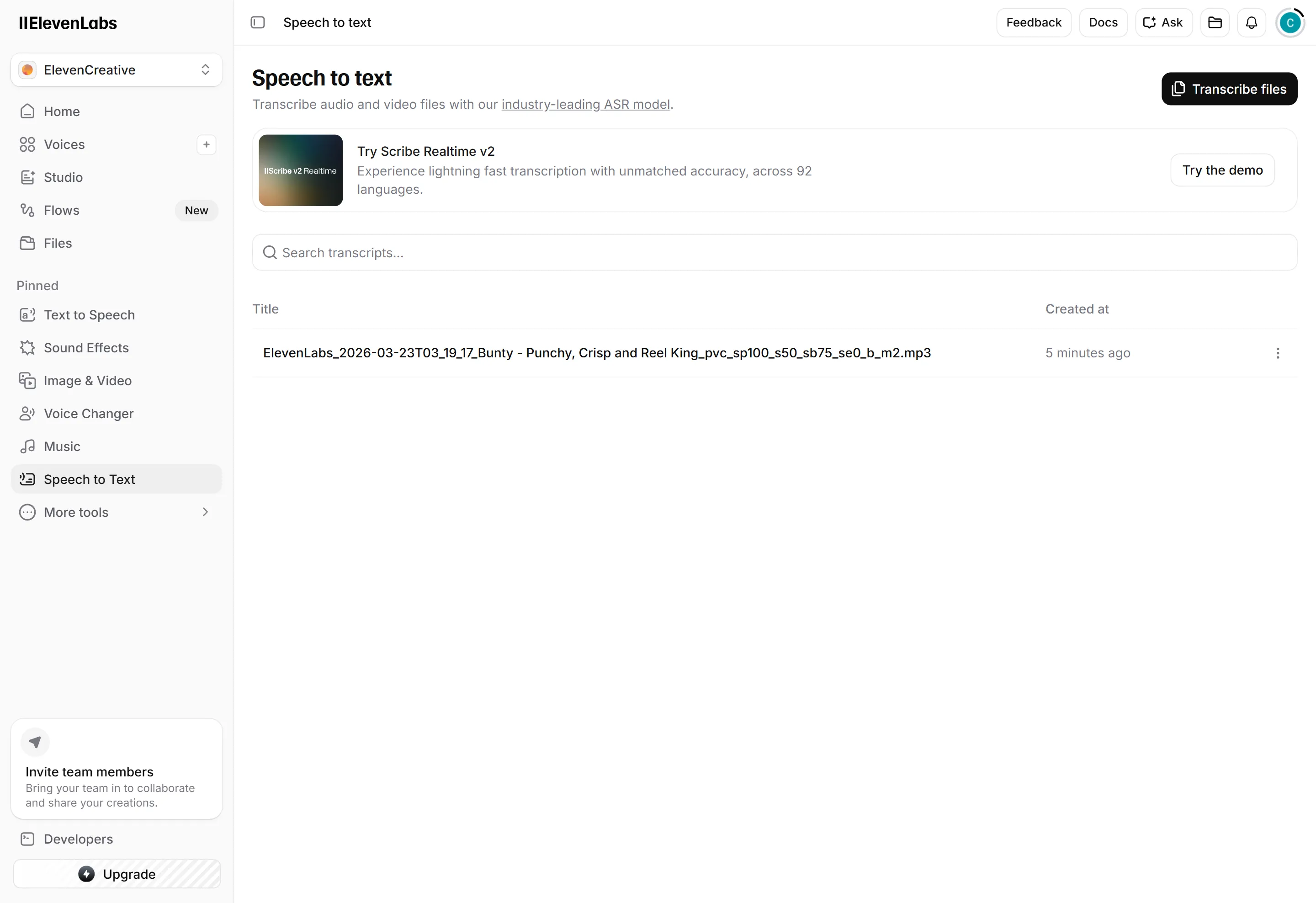
Step 3: Click “Transcribe Files”
At the top right of the page:
Click Transcribe files
A new upload window will open
You now have multiple options to upload your content.
You can upload:
Audio files (MP3, WAV, etc.)
Video files
YouTube links
Any URL containing audio or video
This makes it easy to generate captions even if the file is hosted online.
Step 4: Upload Your Audio or Video
Upload your file or paste the URL and then:
Click Upload / Transcribe
ElevenLabs will start processing the file
Depending on the length of the audio or video, transcription usually takes a few seconds to a couple of minutes.
The AI will automatically:
Detect speech
Convert speech into text
Generate timestamps
Create subtitle segments
Step 5: Wait for the Transcription to Finish
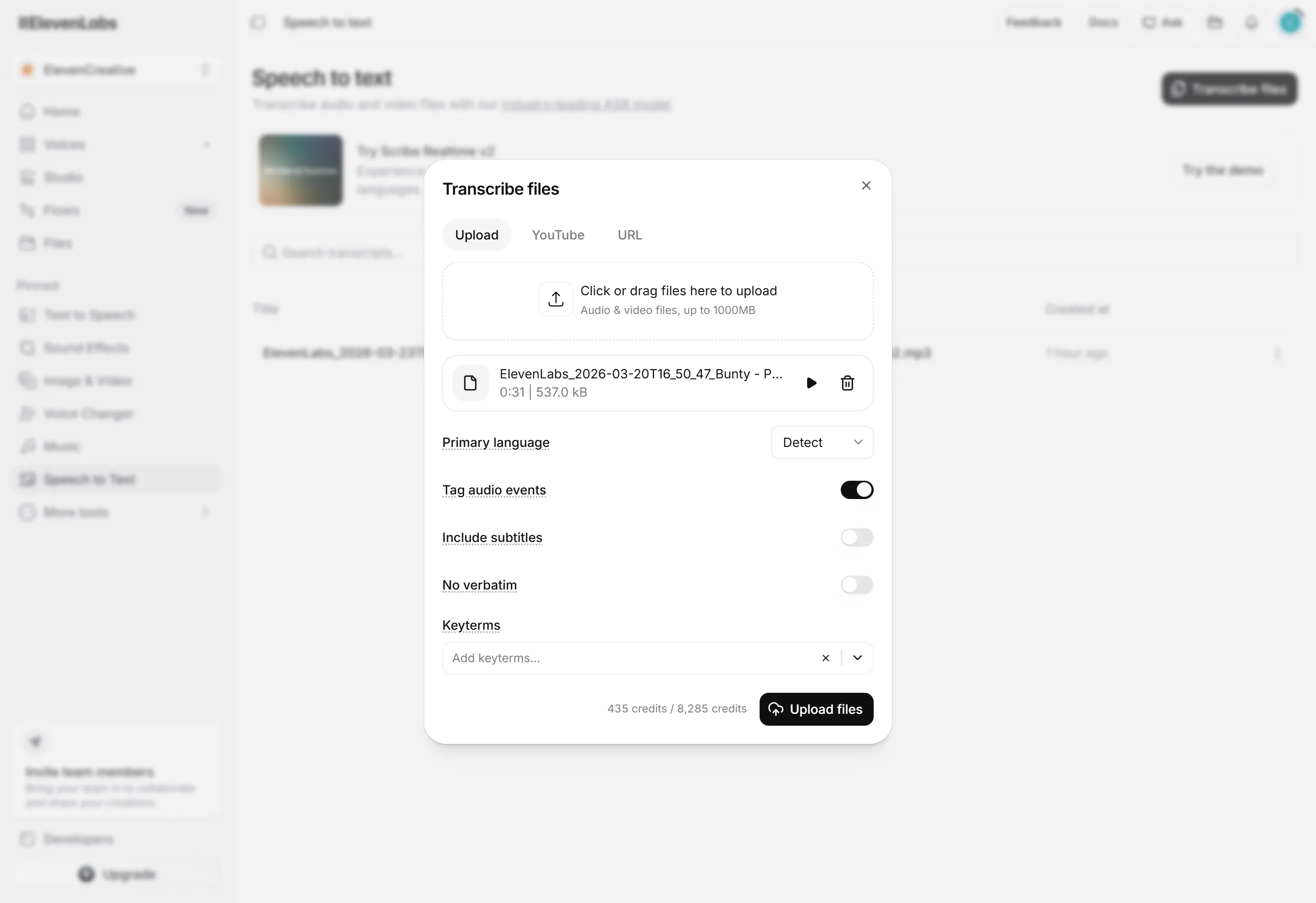
After processing, the transcription will appear in your Speech-to-Text dashboard list.
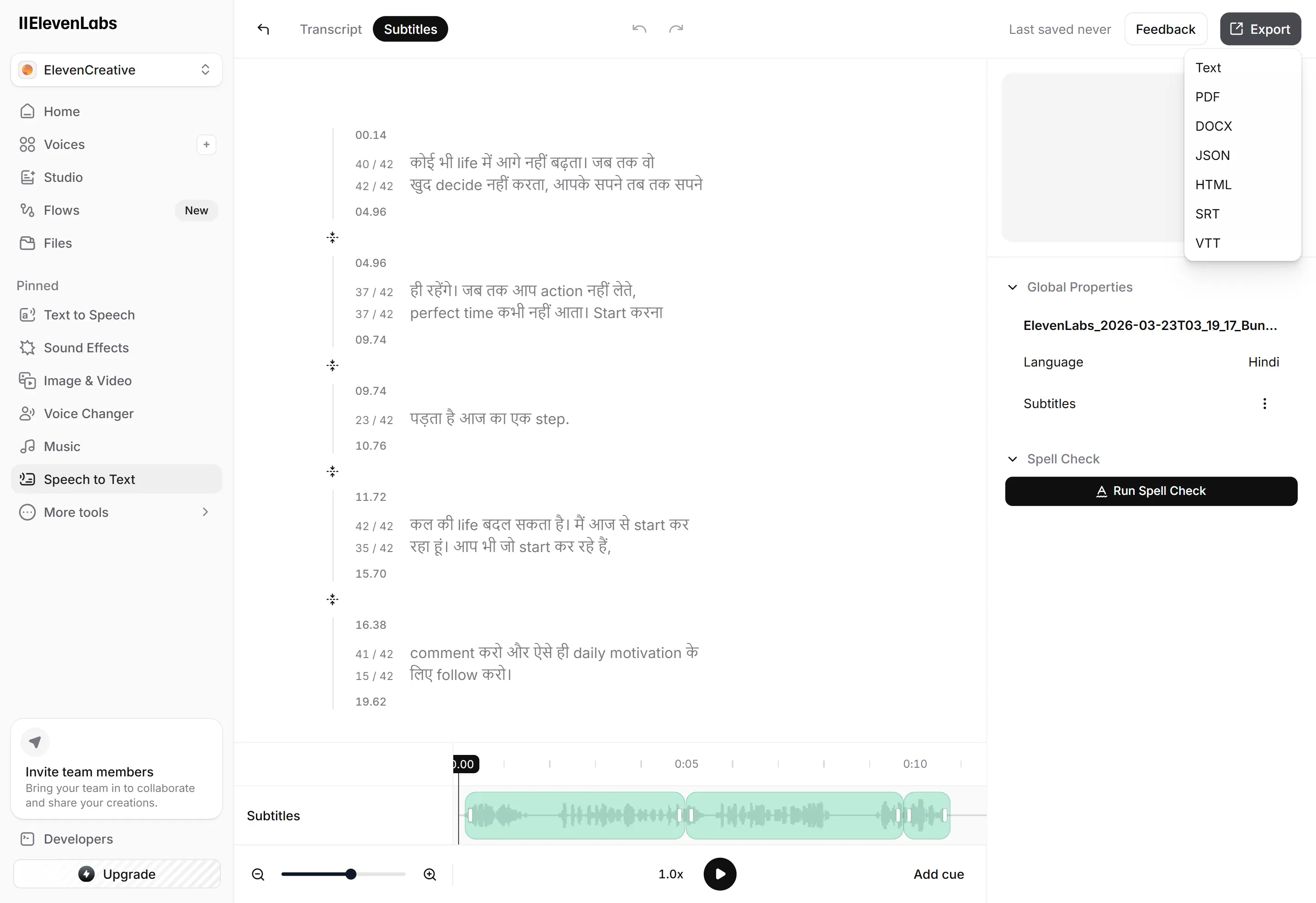
Click on the generated file to open the subtitle editor.
Inside the editor you will see:
Timestamped subtitle blocks
Editable text captions
Timeline synced with the audio
You can also edit captions manually if needed.
Step 6: Export the SRT File
To download your subtitle file:
Look at the top-right corner
Click the Export button
Select SRT from the dropdown menu
Other export formats may include:
TXT
DOCX
JSON
HTML
VTT
But for video editing, SRT is the most commonly used format.
Step 7: Use the SRT File in Your Video Editor
Once downloaded, you can import the SRT file into your editing software.
Common tools that support SRT:
CapCut
Premiere Pro
Final Cut Pro
DaVinci Resolve
YouTube Studio
Veed / Descript / other editors
After importing, the captions will automatically sync with your audio.
You can then:
Style subtitles
Add animations
Change fonts
Adjust timing
Benefits of Using ElevenLabs for Auto Captions
Using ElevenLabs to generate SRT files offers several advantages:
Fast transcription: Captions are generated in seconds.
High accuracy: The AI speech recognition is very accurate across many languages.
Multiple input options: Upload files or paste URLs.
Editable subtitles: You can correct or adjust captions before exporting.
Multiple export formats: Download subtitles as SRT, VTT, TXT, and more.
Final Thoughts
Generating subtitles manually can take hours. With ElevenLabs Speech-to-Text, you can create accurate SRT auto captions in just a few minutes.
The process is simple:
Log in to ElevenLabs
Open Speech to Text
Click Transcribe Files
Upload your audio or video
Wait for the transcription
Export the SRT file
After that, you can import the subtitle file into your video editor and start editing immediately.
Want to generate even better AI voices with ElevenLabs?
If you're using ElevenLabs for voiceovers, subtitles are only half the workflow. The real power comes from mastering the latest voice models and prompt techniques.
Read our complete guide:
ElevenLabs Guide 2026: Master V2, V2.5, and V3 to Generate Premium Human AI Voices for Free (With Prompts)
In that guide you’ll learn:
How to choose the best ElevenLabs voice model
The exact prompts used for high-quality AI voiceovers
Tips to create studio-level narration for videos
Perfect for creators making YouTube videos, reels, audiobooks, and AI voice content.